

- 6 Best Email Header Analyzers I Use Almost Daily - août 28, 2026
- MXToolbox Alternatives Worth Your Money - août 7, 2026
Last Updated on septembre 8, 2026 by Victor Carrera
Since 2024, Google and Yahoo have required bulk senders to pass SPF, DKIM, and DMARC. Microsoft followed. Suddenly, a whole lot of marketers who had never opened an email header needed to know what was inside one.
I was one of them, sort of. I’d seen headers before and always closed the tab. I didn’t want to look at thirty lines of server names, timestamps, and a signature that looked like a cat walked across a keyboard.
But then one day my campaigns started landing in spam, and the dashboard swore everything was fine. The header told a different story: the domain that passed authentication and the domain in the From line didn’t match. Ten minutes with the right tool and the mystery was over.
In this post, I’ll walk through the six header analyzers I keep bookmarked, what each one is good at, and how to read what they hand back.
At a Glance
- InboxAlly: Best all-rounder
- Google Admin Toolbox Messageheader: Best for delays
- MXToolbox: Best for resolving DNS problems
- Microsoft Message Header Analyzer: Best for Outlook and Exchange
- EasyDMARC: Best for whole-message analysis
- PowerDMARC: Best free option for learning
What’s Aactually in a Header?
Essentially three important parts. You can easily ignore the rest.
Authentication results. SPF, DKIM, and DMARC, each one a pass, a fail, or nothing at all. The receiving server writes its verdict into a line called Authentication-Results. If you learn one field, learn this one.
Alignment. Contrary to what some people think, SPF doesn’t check the From address at all. It checks the envelope sender in Return-Path, which your recipient never sees. For instance, a scammer can register a throwaway domain, authorize their own server on it, pass SPF, and still put your CFO’s name in the From line. Nothing failed. Everything is wrong. DMARC exists to close that door by insisting the two domains match.
The Received chain. Every server adds its line at the top, so the list runs backwards in time. The bottom is where the message started; the top is the last stop before your inbox. Subtract each timestamp from the one below it, and you’ll find the server that delayed your email by twenty minutes.
Length matters too. Normal mail passes through a handful of servers. If the chain scrolls forever, you’ve got a forwarding loop, and Exchange gives up after 30 hops by default, well under the 100 or so RFC 5321 suggests.
Need the raw text?
- Gmail: three dots, then Show original.
- Outlook desktop: open the message in its own window, File, then Properties.
- Apple Mail: View, Message, All Headers.
1. InboxAlly
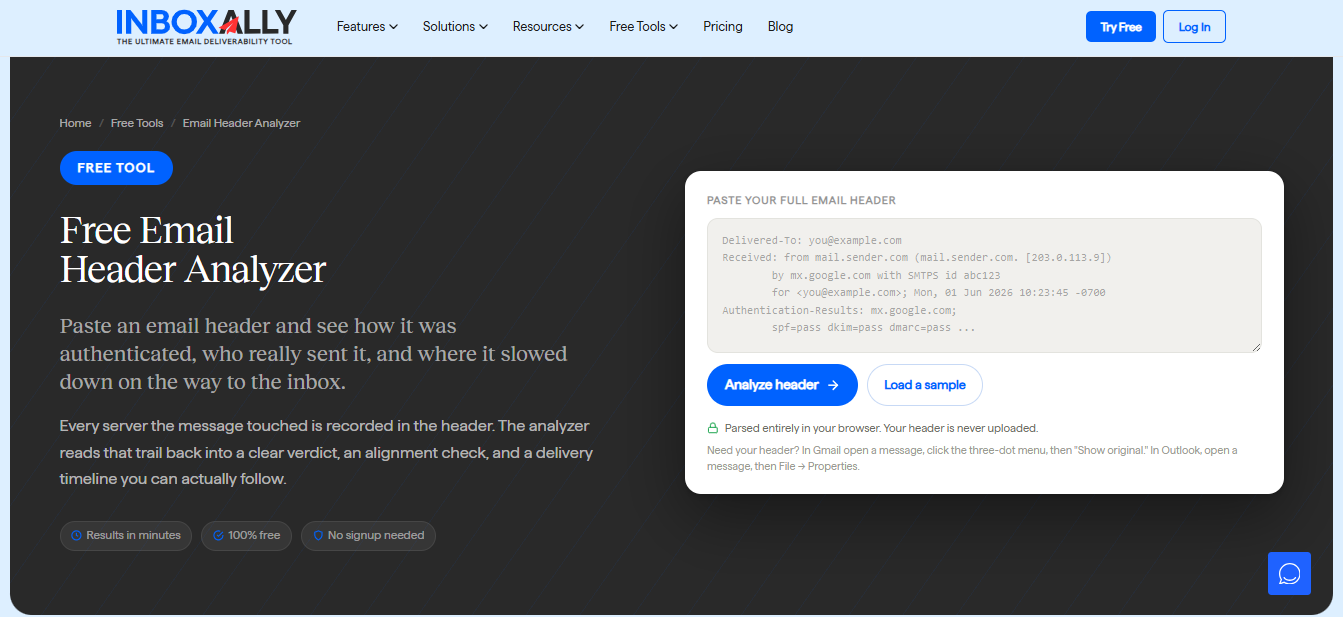
InboxAlly’s email header analyzer parses everything in your browser. Your header never gets uploaded anywhere, and that’s something you should care about, even if it doesn’t sound like a big deal at first. More on that below.
There’s one exception, and I like that they disclosed it instead of burying it. Instead of the header, the tool sends the originating IP to a public resolver so it can check reverse DNS, confirm the record resolves both ways, and name the network that owns it. A sending IP with no working reverse DNS is a genuine problem better caught sooner rather than later.
Here’s what you get back:
- Authentication. SPF, DKIM, and DMARC as plain pass, fail, or missing labels.
- Alignment. From, Return-Path, and the DKIM signing domain, side by side.
- Delivery path. Every hop in the right order, with the delay at each one.
- Blocklist check. One click on the sending IP.
That last one saves me a step almost every time. After reading a header, my next question is usually whether the IP is listed somewhere, and having it right there is much easier than opening a second tool.
Who it’s best for: Anyone who wants authentication, alignment, and routing on one screen without handing their header to a stranger.
Price: Free, no account.
2. Google Admin Toolbox Messageheader
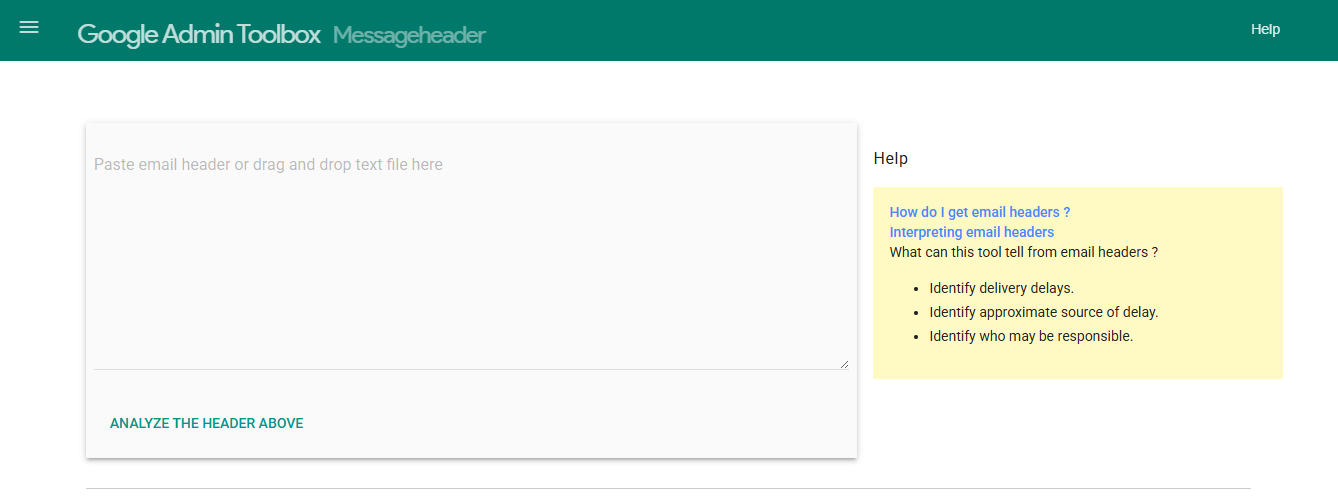
Google’s own parser. When somebody tells me their email arrived late, this is where I go first, because it draws the hops as a colour-coded timeline and points straight at the server responsible. I’m not getting drowned in timestamps, squinting at code not meant for me.
It’s somewhat narrow since it only checks timing. It won’t tell you if SPF or DKIM passed, and it won’t catch a spoofed From address. It also doesn’t parse in your browser. Your header goes to Google’s servers to get read instead. If that’s fine with you, it’s still the quickest way to find which server delayed a message.
It’s also the one I’d give to a non-technical colleague. You don’t need to know what Authentication-Results means to look at the timeline and see which hop took too long.
Who it’s best for: Workspace admins fixing a routing problem inside Google’s own setup.
Price: Free, no login.
3. MXToolbox
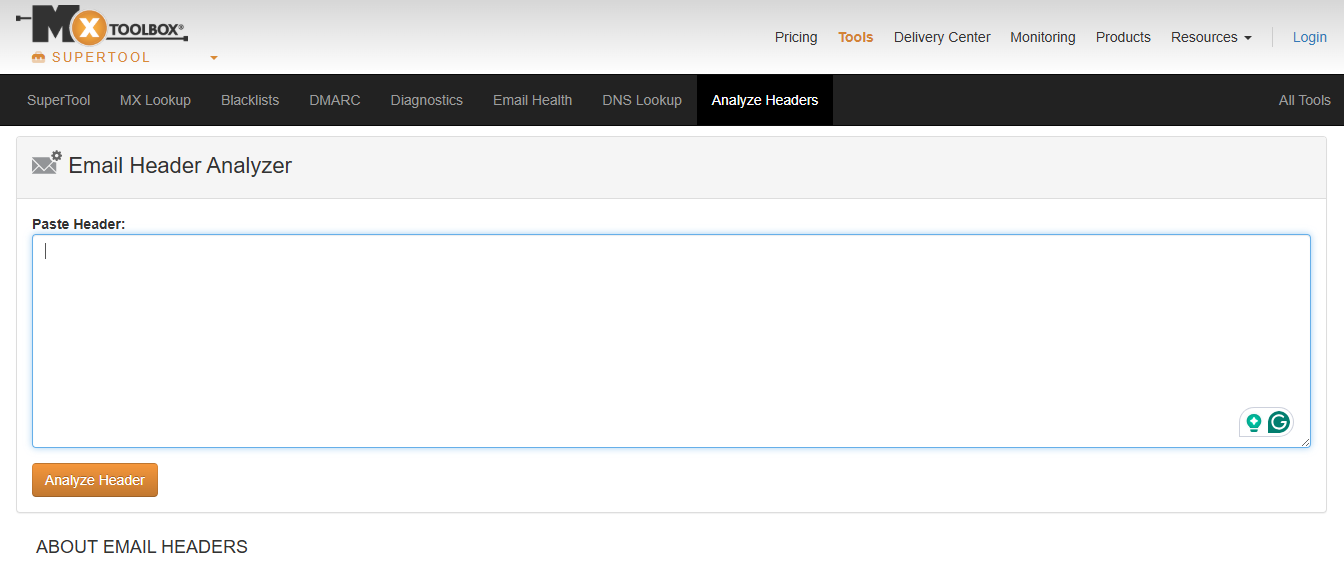
MXToolbox does more than parse; it puts authentication results, relay info, and blacklist status in one report, then keeps its DNS lookups, DMARC checks, and MX diagnostics a click away.
That closeness is what makes it good, and it’s why MXToolBox has remained popular over the years. I’ve rarely finished a header investigation without needing to go check a record.
The free analyzer covers one-off jobs fine. Ongoing monitoring means Delivery Center, which includes inbox placement analysis, complaint reporting, and adaptive blacklist monitoring starting at $129 a month. That’s reasonable for a company with a full-on mail team but a lot of money for something you’ll open twice a month as a single person running cold outreach.
Who it’s best for: System admins and marketers who need DNS records, blacklist status, and relay info in the same report as the header.
Price: Free header analyzer. Delivery Center from $129/month.
4. Microsoft Message
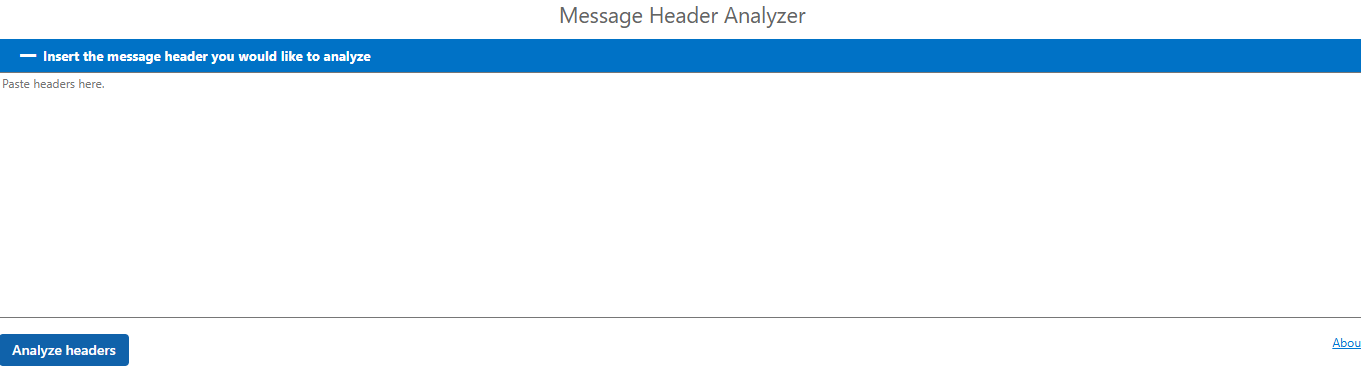
Microsoft’s parser is open source on GitHub under an MIT licence, and it comes two ways. There’s a standalone web page that needs no permissions, and there’s an Outlook add-in that reads headers straight out of whatever message you have open, on desktop and on iOS and Android.
The add-in is the good part. It’s also the reason your IT team may have said no.
It requires ReadWriteMailbox access, and the developer explains why right in the project README: the method it needs to read one single property doesn’t come at any lower permission level. He adds that he’d ask for less if he could. Installing it usually goes through an Exchange admin, so budget a conversation.
One more thing. Older Microsoft pages still list the header analyzer as part of the Remote Connectivity Analyzer, but that copy was pulled years ago in favour of the open-source build.
Who it’s best for: Outlook and Exchange admins, especially anyone reading headers on a phone.
Price: Free.
5. EasyDMARC
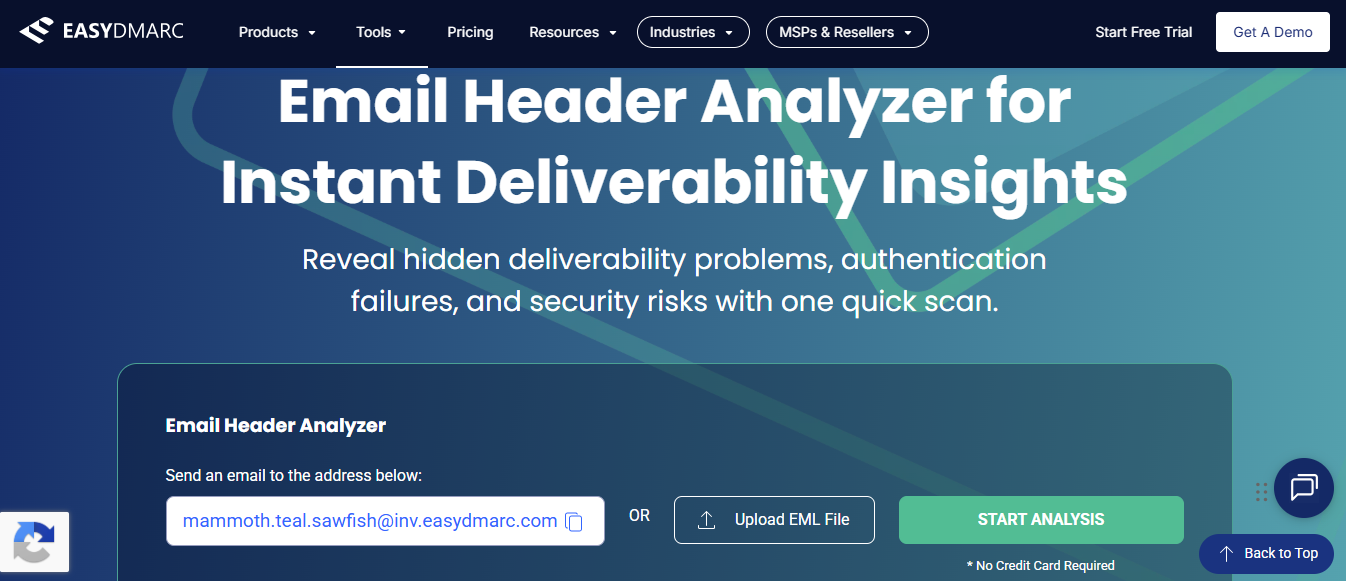
This one works differently, and I think it’s underrated. Instead of pasting a header, you send your email to a generated address, or upload an EML file if you prefer. It then looks at the whole message rather than just the routing data.
The report covers a lot:
- Authentication and DNS. Results plus a look at your actual records.
- Blacklist status. Same idea as MXToolbox’s check.
- SpamAssassin score. Useful for problematic content.
- Content and preview. Your email’s structure, plus how it renders.
- Compliance. Right down to whether your unsubscribe link is where it should be.
When the question is why a whole campaign is getting filtered, that gets you much further than a hop timeline will.
There is one caveat, however. Since you’re sending a live message to a third party, you’ll get nudged toward a DMARC trial constantly. For investigating a suspicious email somebody sent you, use something less obnoxious.
Who it’s best for: Marketers debugging whole campaigns at a time.
Price: Free, no card required.
6. PowerDMARC
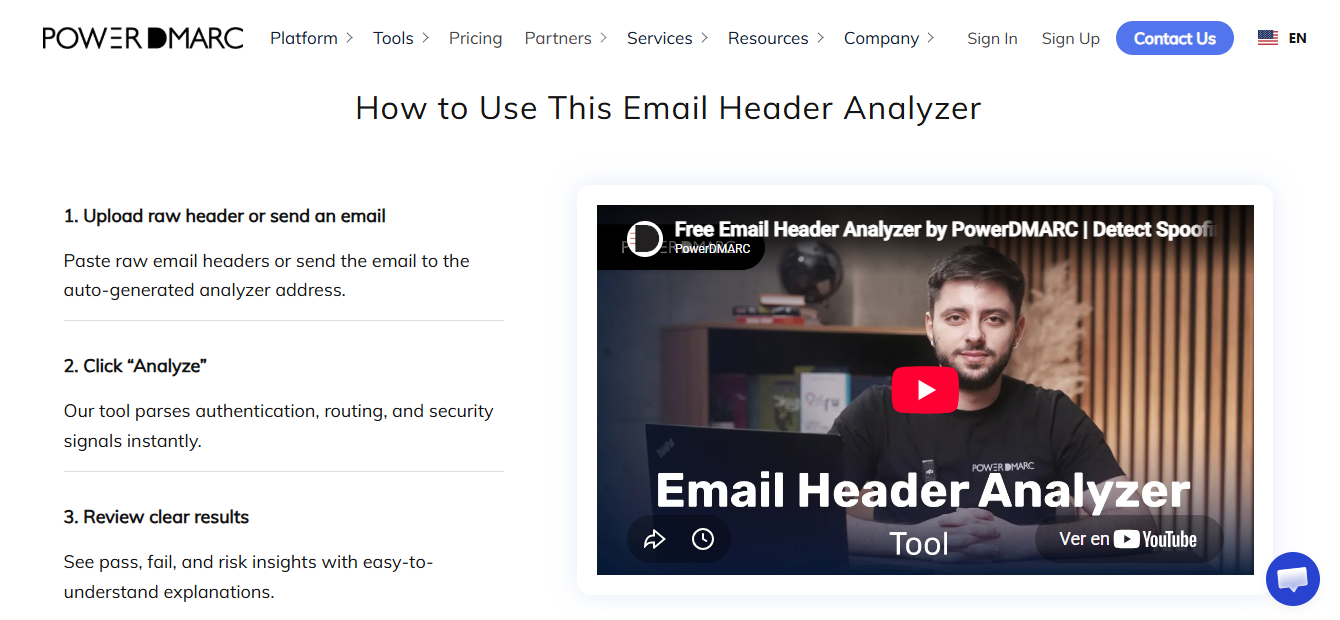
It’s free, doesn’t require a login, and it takes a paste or a send-to-address. You get authentication, routing, per-hop delays, and risk flags, each one with a plain-English explanation.
Those explanations are why it made the list. I’ve used it to walk someone through their first spoofing case and barely had to say a word. It also checks MTA-STS and BIMI, which helps if you’re building authentication out properly from the ground up.
Who it’s best for: Anyone learning headers, or teaching them.
Price: Free.
Pro tip: Check Where Your Header Goes Before You Paste It
Your header lists internal server names, routing paths, and sometimes internal IP addresses. It’s a small map of how your mail is set up.
Pasting that into a random free tool is kind of like typing your password into an unfamiliar site. This category is also full of abandoned domains that still rank well, because roundups get republished and nobody rechecks the links.
Two habits fix it. Use a tool that parses locally whenever you can. And when a header is sensitive, stick with Google or Microsoft over whatever free tool that just happened to rank well in a search.
So Which One Should You Use?

The answer depends on the complaint, and there’s no single winner here.
A specific message went somewhere strange, and you want authentication, alignment, and routing on one screen? Start with InboxAlly. Only complaint is lateness, and you’re on Google Workspace? Google Admin Toolbox Messageheader. Already suspect a DNS record? MXToolbox keeps the next lookup close. Everyone works in Outlook, and your admin will approve an add-in? Microsoft Message Header Analyzer kills the copy-paste step. Whole campaign getting filtered instead of one email? EasyDMARC sees what a header can’t.
Now, if you want to bookmark just one and be done with it, I recommend picking one that shows alignment and doesn’t upload anything, just to be safe.
Final Thoughts: a Clean Header Isn’t All You Need
Run enough of these, and you’ll see the same result over and over. SPF pass, DKIM pass, DMARC pass, domains aligned, no odd hops, no delays, and the email still goes to spam.
Authentication only proves the message came from a server your domain approved and nobody altered it in transit. It says nothing about whether Gmail wants to show it to anyone. That part comes down to sender reputation, engagement, list quality, and content, and a perfectly authenticated email from a domain with a bad reputation gets filtered exactly like one with no authentication at all.
Which is why I’d rather have a header analyzer that’s built into a tool that repairs reputation than one working on its own. A parser tells you the message was clean. It can’t tell you the domain isn’t.
So if you’ve pasted three headers this week and they all came back green while your open rates keep dropping, the problem was never the header but the reputation behind it. And that takes more than a parser to fix.



 English
  German
  Spanish
  French